

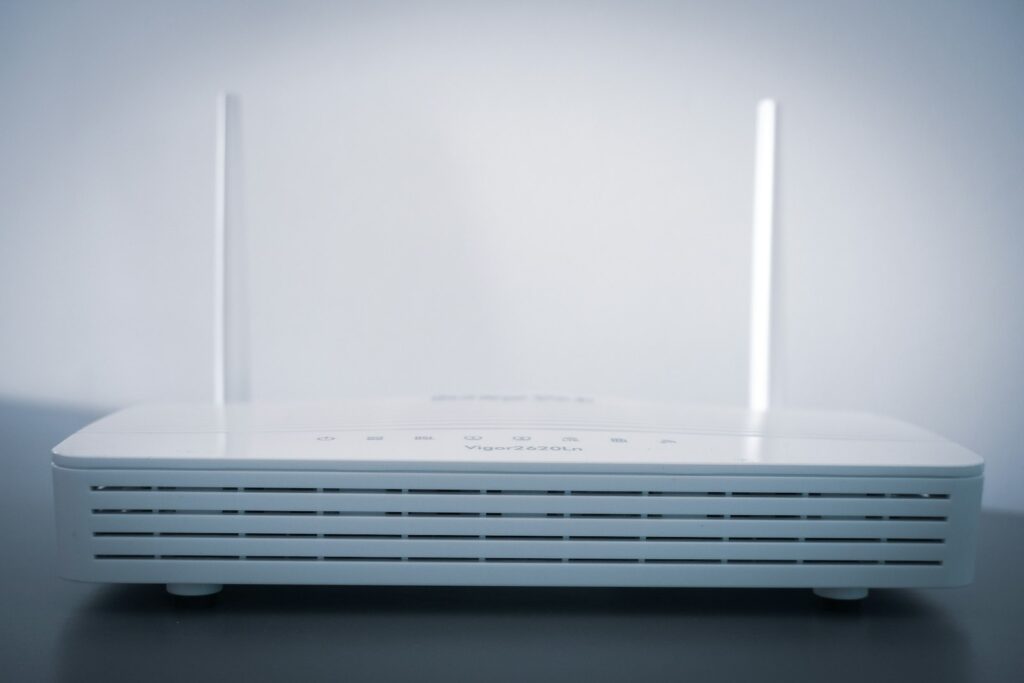
If you’ve ever been on a Zoom call when your Wi-Fi suddenly drops mid-sentence — and then reconnects like nothing happened — you already know the special kind of frustration. So why does my Wi-Fi keep disconnecting, and how do you actually make it stop?
Good news: in many common household cases, it’s not a serious network outage. It’s often one of a few issues you can check yourself in about 10 minutes. Below are typical causes and practical fixes — results vary by home and equipment.
1. Your Router Is Overheating
This is way more common than people think. Routers are basically little computers, and like any computer, they need airflow. Stick one in a closed cabinet or in direct sunlight and it’ll start throttling — which usually shows up as random drops.
Fix it: Touch your router. If it feels uncomfortably hot, move it somewhere open and elevated. Don’t stack things on top of it. That alone fixes a surprising number of disconnect problems.
2. Your Firmware Is Out of Date
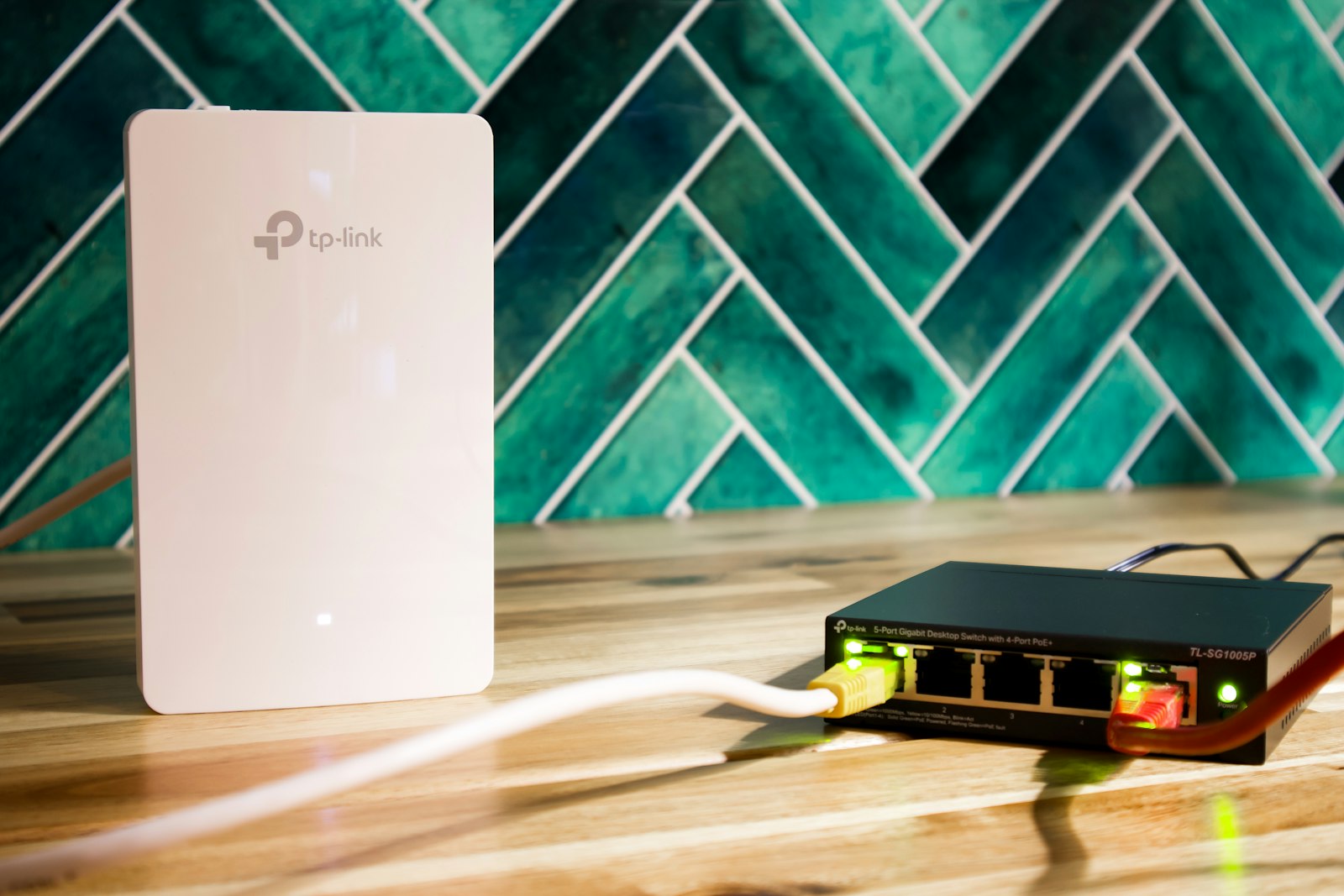
Manufacturers push firmware updates that fix bugs and improve stability. Most people never install them because nobody told them they should. An old firmware build is one of the top reasons routers drop connections randomly.
Fix it: Open a browser, type 192.168.1.1 or 192.168.0.1. Log in (usually printed on the router itself). Find “Firmware Update” or “System Update.” Hit install. Takes 5 minutes.
3. Too Many Devices Are Crammed Onto One Band
Modern routers broadcast on 2.4 GHz and 5 GHz (and sometimes 6 GHz). When too many devices pile onto the 2.4 GHz band, the router gets overwhelmed and starts dropping the slowest ones to keep itself afloat.
Fix it: Separate the bands in your router admin. Put smart-home gadgets (lights, thermostats, doorbells) on 2.4 GHz. Put phones, laptops, and TVs on 5 GHz. Way less congestion.
4. Your Wi-Fi Channel Is a Traffic Jam
This one is sneaky and very common in apartments. Your router picks a Wi-Fi channel automatically. If 12 of your neighbors are on the same channel, your signal collides with theirs constantly. Result: random disconnects.
Fix it: In your router admin, change the 2.4 GHz channel to 1, 6, or 11 (those are the only ones that don’t overlap). Apps like WiFi Analyzer (free) show you which channel is least crowded in your area.
5. Your Router Is Just Old
Anything older than about 5 years is a candidate for replacement. The hardware just can’t handle the number of devices we throw at it now. They overheat faster, drop more, and can’t keep up with modern Wi-Fi 6 / Wi-Fi 7 standards.
Fix it: Replace it. Wi-Fi 6 routers start at around $80. If you’re wondering what role each piece plays, read our router vs modem guide these days. For bigger houses, a mesh system like Eero, Google Nest Wi-Fi, or TP-Link Deco often reduces disconnect issues caused by weak coverage — though it will not fix ISP outages or every router problem.
6. Your ISP Is Having a Bad Day
Sometimes the problem isn’t your router or your house at all. ISPs do maintenance, have local outages, or just route traffic poorly during peak hours.
Fix it: Check downdetector.com for your provider. If others in your area are reporting the same thing, it’s not you. Call your ISP, or just wait it out.
7. Your Device Is the Problem (Not the Router)
If only one device keeps disconnecting and everything else is fine — the issue is that device, not your network. Could be a bad Wi-Fi adapter, an outdated driver, or weird power-saving settings.
Fix it:
- On Windows: Device Manager → Network adapters → uncheck “Allow the computer to turn off this device to save power.”
- On Mac: try resetting the SMC and PRAM.
- Update the Wi-Fi driver on whatever device keeps dropping.
8. There’s Interference From Other Electronics
Microwaves, baby monitors, old Bluetooth speakers, certain wireless cameras — they all broadcast on or near the 2.4 GHz band. Run a microwave for 30 seconds and watch your phone’s Wi-Fi cough.
Fix it: Switch to 5 GHz Wi-Fi for any device that supports it. The 5 GHz band sidesteps almost all of this interference.
The 60-Second Diagnostic
Quick way to figure out what’s going on before you spiral:
- Are all devices disconnecting, or just one? → If one, it’s that device. If all, it’s the router or ISP.
- Plug your laptop directly into the router with Ethernet. Does it still drop? → If yes, ISP issue. If no, Wi-Fi issue.
- Unplug the router for 60 seconds. Plug back in. Does it fix it temporarily? → If yes, overheating or firmware bug.
That’s enough info to figure out where the problem actually is.
FAQ
Why does my Wi-Fi drop only at night?
Peak-hour congestion. Between 7 PM and 11 PM, your whole neighborhood is streaming, gaming, and calling. Your ISP’s local network chokes. Fiber handles this way better than cable.
Should I restart my router every day?
Daily is overkill. Once a week is the sweet spot. If you have to restart it more than that, you’ve got a real problem and should replace the router.
Does Wi-Fi 6 stop disconnects?
Mostly, yes. Wi-Fi 6 (and 7) handles more devices simultaneously, manages traffic better, and overheats less. Upgrading to Wi-Fi 6 fixes a huge chunk of disconnect issues people deal with on old routers.
Does fiber internet drop less than cable?
Yes. Fiber doesn’t suffer from electrical interference or weather sensitivity. The connection itself is more stable, which means fewer ISP-side drops.
When should I call my ISP?
After you’ve tried restarting, checked for area outages, and confirmed Ethernet drops too. If wired is also disconnecting, it’s their problem to fix.
Bottom Line
If your Wi-Fi keeps disconnecting, the usual suspects are an overheating or old router, a clogged Wi-Fi channel, or out-of-date firmware. Work through the fixes in order — you’ll usually nail it within the first three.
If nothing works after all that, it’s almost always time for a new router. Wi-Fi 6 routers are cheap, mesh systems are easy, and most disconnect problems disappear the day you install them.
Related Reading
- Why Is My Wi-Fi So Slow All of a Sudden? — 10 real reasons your Wi-Fi got slow and how to fix each one.
- Router vs Modem: What’s the Difference? — What each device actually does — and why you need both.
- Wired vs Wireless Internet: Why Ethernet Is Always Faster? — Why a wired connection is usually faster and more stable.
- What Is Fiber Internet? A Complete Beginner Guide — Everything you need to know about fiber internet — the foundational guide.
About Fiber Internet Shop
Fiber Internet Shop helps Americans find the fastest, most reliable internet plan for their home. Our team tracks publicly reported fiber rollouts and breaks down what really matters when you’re shopping — we do not operate a proprietary lab or publish ranked “best ISP” test scores — speed, latency, upload, and real-world reliability. Check fiber availability at your address in under 30 seconds.