


One minute your Wi-Fi is fine. Next minute, pages won’t load, your Zoom call freezes mid-sentence, and Netflix is buffering like it’s 2008. Sound familiar? If you’re asking why is my Wi-Fi so slow all of a sudden, you’re in the right place.
The good news: 9 times out of 10, the fix is something you can handle yourself in under 10 minutes. No tech support call, no new plan, no router upgrade. You just have to know where to look.
I’ve watched friends and family run into the same handful of issues over and over again. So I made a list. Here are the 10 most common reasons your Wi-Fi suddenly tanked — and what to actually do about each one.
1. Too Many Devices Are Eating Your Bandwidth
Walk through your house and count. Phones. Laptops. TVs. Smart speakers. Doorbell camera. Thermostat. That weird Bluetooth scale you bought last year. The average American home has around 25 connected devices now, and every single one is sipping (or chugging) bandwidth.
What to do: Check your router’s admin app. Look for devices you don’t recognize and kick them off. Then unplug or shut down the stuff you’re not actively using. You’ll feel the difference right away.
2. Something Is Updating in the Background
This one’s sneaky. Windows decided 2 PM was the perfect time to push an update. Your phone is backing up 4,000 photos to iCloud. Steam is downloading a 90 GB game patch. All quietly, in the background, while you wonder why your browser is crawling.
What to do: On Windows, open Task Manager and look at the Network column. On a Mac, open Activity Monitor and click the Network tab. Whichever app is hogging bandwidth — pause it.
3. Your Router Just Needs a Restart
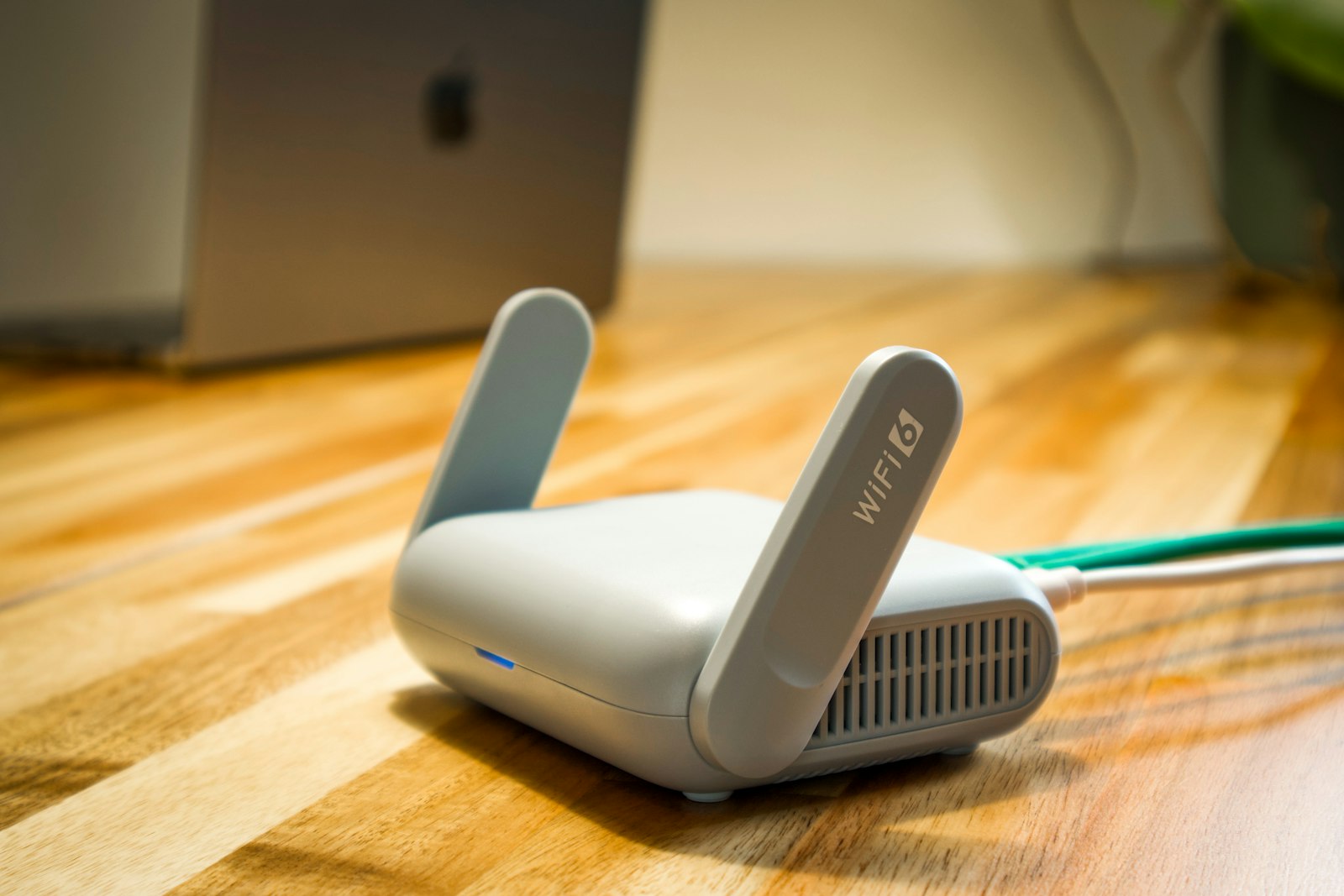
Yeah, it sounds silly. But I’d bet money this fixes your Wi-Fi about 40% of the time. Routers are basically little computers running 24/7 for months on end. They get tired. Their memory leaks. They get confused.
What to do: Unplug the router from the wall. Wait a full 60 seconds (don’t cheat — give the capacitors time to drain). Plug it back in. Give it 2-3 minutes to fully boot. Test again.
4. Your Router’s Firmware Is Out of Date
Most people set up their router once and never touch it again. Meanwhile, the manufacturer keeps pushing firmware updates that fix bugs, patch security holes, and yes — make your Wi-Fi faster.
What to do: Log into your router admin page (usually 192.168.1.1 or 192.168.0.1 in your browser). Look for a “Firmware Update” or “System Update” tab. If there’s an update, install it. Takes about 5 minutes.
5. Your Neighbors’ Wi-Fi Is Stepping On Yours
Live in an apartment? You’ve probably got 20-plus Wi-Fi networks within range right now, and most of them are fighting for the same airwaves. The 2.4 GHz band gets especially clogged because every microwave, baby monitor, and old Bluetooth speaker uses it too.
What to do: Connect to your router’s 5 GHz network instead of 2.4 GHz. The 5 GHz signal doesn’t travel as far through walls, but it’s way less crowded and way faster. If your router lets you, lock the 2.4 GHz channel to 1, 6, or 11 — those are the only three that don’t overlap.
6. The Router Is in the Wrong Spot
This is the #1 thing I see people get wrong. The router is shoved in a closet, behind the TV, in the basement, or right next to the microwave. All of these things kill Wi-Fi signal dead.
What to do: Move it. Central spot in the house. Up high — on a shelf or a wall mount, not on the floor. Away from metal, mirrors, fish tanks (yes, water blocks signal), and big appliances. Antennas pointing up. Just doing this can double your usable range.
7. Your ISP Is Throttling You
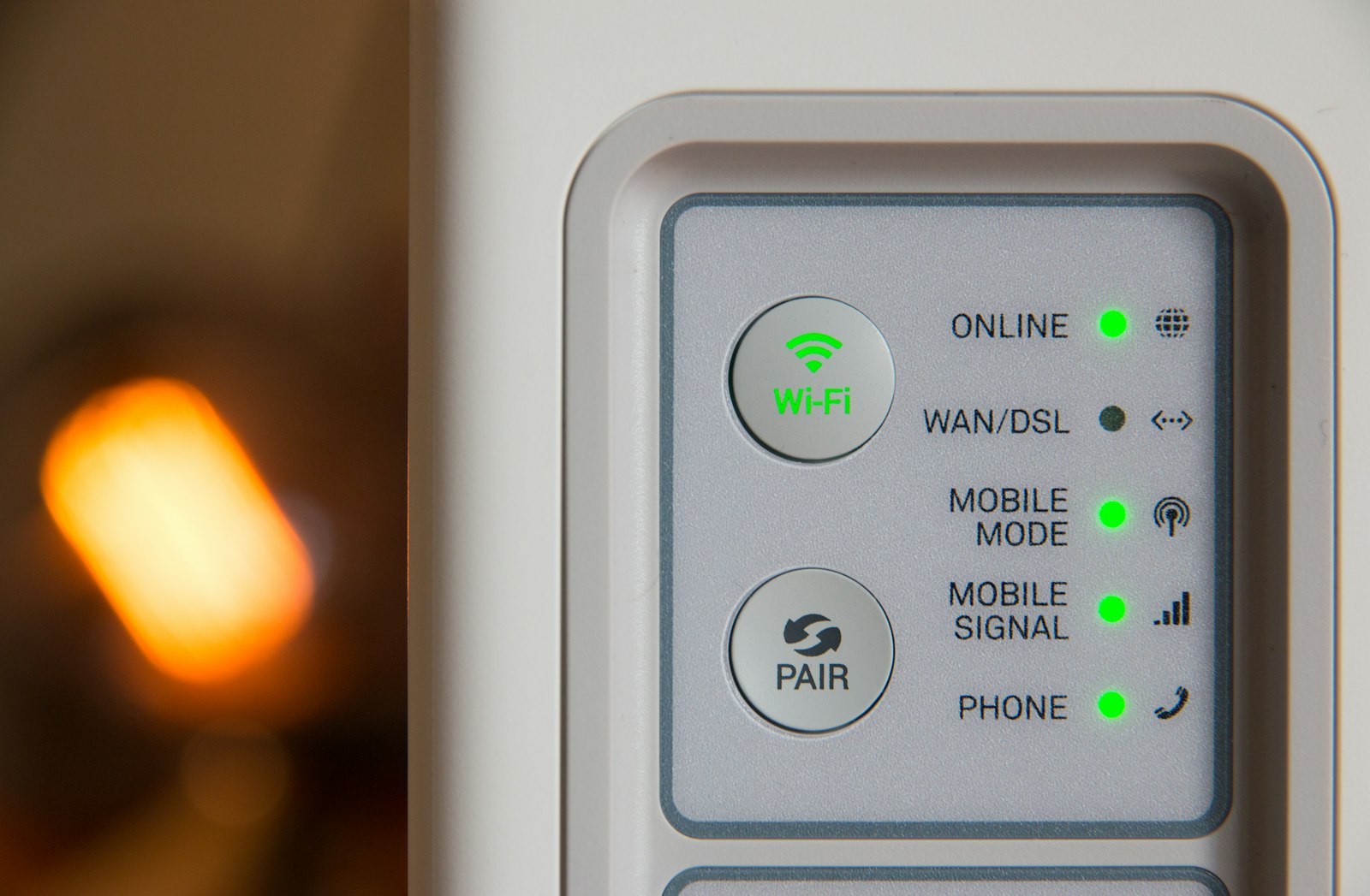
This one’s sneaky. Some ISPs (Comcast, Spectrum, looking at you) quietly throttle your speeds if they think you’ve hit a data cap or if you’re streaming a lot of video. They won’t always tell you they’re doing it.
What to do: Run a speed test on speedtest.net. Then turn on a VPN and run it again. If your speeds suddenly jump with the VPN on, congratulations — you’ve caught your ISP throttling you. Call them, or switch providers if it keeps happening.
8. Your Router Is Just Too Old
If your router is more than 4 or 5 years old, that’s a long time in tech years. It probably runs Wi-Fi 5 (or worse), can’t handle the number of devices you have today, and has zero chance of delivering the speeds you’re paying for.
What to do: Upgrade. Wi-Fi 6 routers are dirt cheap now ($80-$150) and Wi-Fi 7 is where the cool kids are at if you want to future-proof. If you’ve got a big house, look at mesh systems like Eero or Google Nest.
9. Something on Your Network Has Malware
Less common, but it happens. A compromised laptop or smart device might be sending traffic to a botnet, mining crypto in the background, or doing some other shady thing that’s eating your bandwidth.
What to do: Run a full antivirus scan on every computer in the house. Check your router admin panel for unfamiliar devices. While you’re there, change your Wi-Fi password — it’s been a minute, hasn’t it?
10. Honestly? It Might Be Your ISP Having a Bad Day
Sometimes it’s genuinely not you. There could be an outage in your area, maintenance on a local node, or just peak-hour congestion making everyone slow at once.
What to do: Check your ISP’s outage map (they all have one). Look at downdetector.com to see if other people in your area are reporting the same thing. If it’s widespread, just wait it out. If it’s only you, call support — that’s what you pay them for.
How to Figure Out What’s Wrong in Under 60 Seconds
Quick troubleshooting trick before you start panicking:
- Run a speed test over Wi-Fi. Note the number.
- Plug your laptop directly into the router with an Ethernet cable. Run the test again.
- If Ethernet is fast but Wi-Fi is slow → it’s a Wi-Fi problem (interference, placement, old router).
- If Ethernet is also slow → it’s either your router, your modem, or your ISP.
That single test tells you whether you’re chasing a Wi-Fi issue or an internet issue. Saves a ton of time.
FAQ
Why does my Wi-Fi only get slow at night?
Peak hours. Between 7 PM and 11 PM, everyone in your neighborhood is streaming, gaming, and video calling at the same time. Your ISP’s local network gets congested, and your speeds drop. Fiber handles this way better than cable.
Will a VPN slow down my Wi-Fi?
A little, yeah. Usually 5-15%. But on fiber, you won’t really notice. And if your ISP is throttling you, a VPN can actually make your speeds faster, which is wild.
Do Wi-Fi extenders actually work?
Sort of. They extend coverage but usually cut your speed in half in the extended area. If you really care about coverage, a mesh system (like Eero, Google Nest Wi-Fi, or TP-Link Deco) is way better. Not sure if it’s your router or modem? Read our router vs modem guide.
How do I know if my router is going bad?
It restarts on its own. Wi-Fi drops randomly. Speeds are way slower than what you’re paying for, even on Ethernet. It runs hot to the touch. Any of those = time for a new one.
Should I call my ISP?
Only after you’ve tried the steps in this list. Tech support will make you do all of them anyway before they’ll send anyone out. Save yourself the hold time.
Bottom Line
Most “sudden” Wi-Fi slowdowns aren’t really sudden. Something’s been building up — interference, an old router, too many devices, a background download — and one day it crosses the line where you notice.
Work through this list in order. Start with the easy stuff (restart, check for hogs, move the router). Most people fix the issue in the first three or four steps. If you’re still slow after going through everything? Then it’s time to either upgrade your hardware or have a real talk with your ISP.
Either way, you don’t have to live with bad Wi-Fi. You paid for fast internet. Go get it.
Related Reading
- Why Does My Wi-Fi Keep Disconnecting? — 8 real reasons your Wi-Fi keeps dropping and the fixes that work.
- Router vs Modem: What’s the Difference? — What each device actually does — and why you need both.
- Wired vs Wireless Internet: Why Ethernet Is Always Faster? — Why a wired connection wins every time for speed and stability.
- What Is Fiber Internet? A Complete Beginner Guide — Everything you need to know about fiber internet — the foundational guide.
About Fiber Internet Shop
Fiber Internet Shop helps Americans find the fastest, most reliable internet plan for their home. Our team tracks publicly reported fiber rollouts and breaks down what really matters when you’re shopping — we do not operate a proprietary lab or publish ranked “best ISP” test scores — speed, latency, upload, and real-world reliability. Check fiber availability at your address in under 30 seconds.